DILOS User Manual
DILOS organizes recorded public meetings, synchronized transcripts, participants, political groups, searchable content, analytics, and assisted editorial workflows in one multi-organization platform.
Open recordings, follow transcripts, and jump between meeting moments.
Search meetings and transcript content using quick or advanced search.
Role-based tools keep organization and system administration separate.
Access and organizations
Sign in
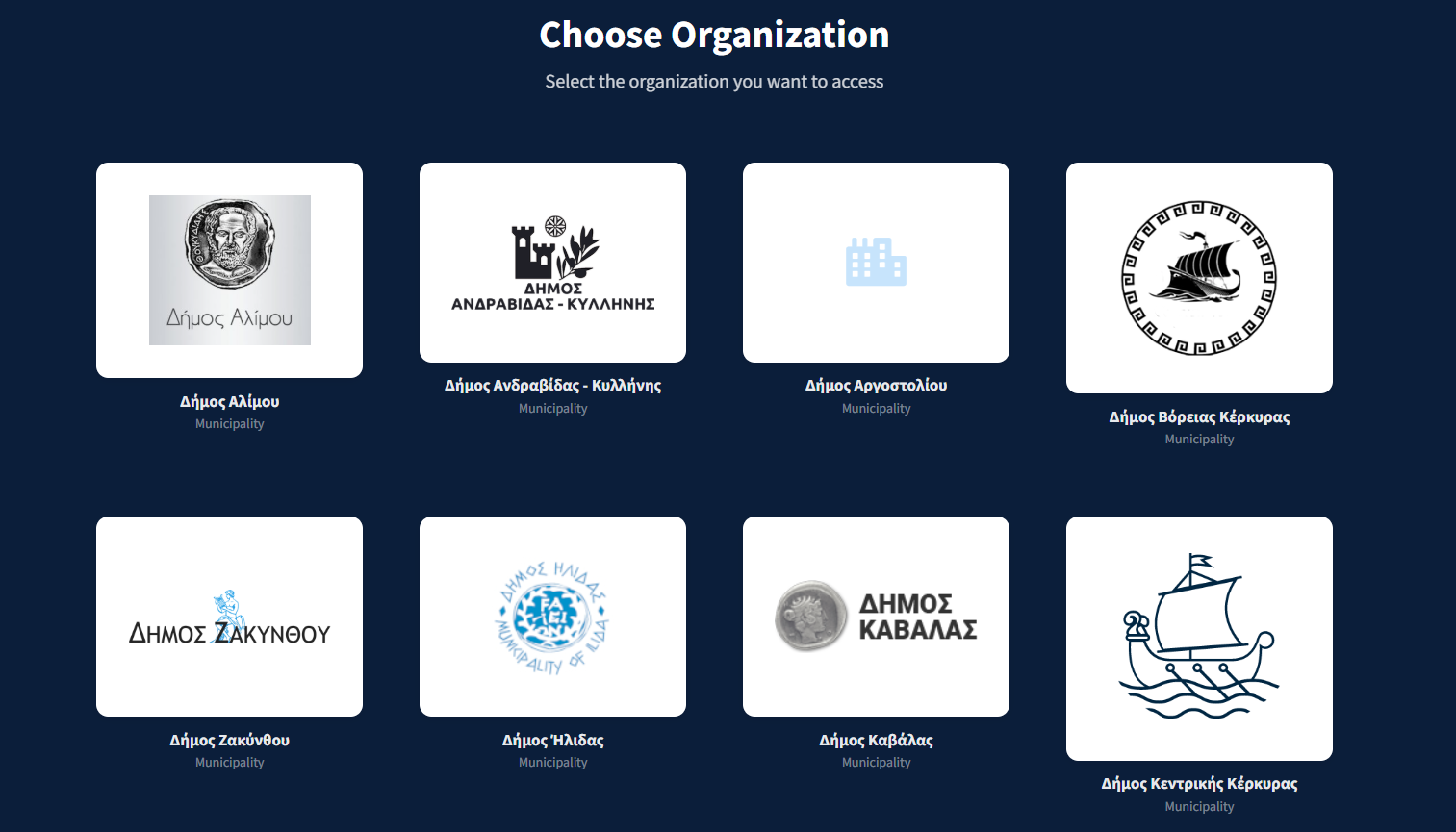
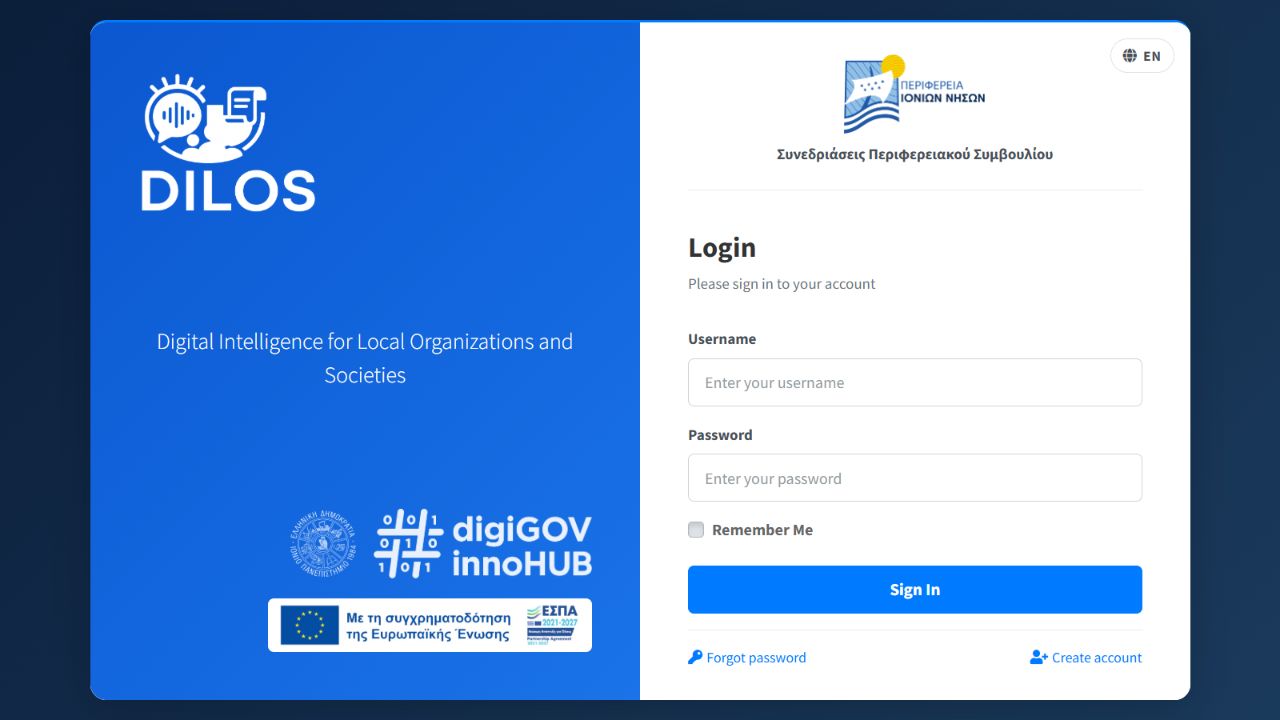
- Open the DILOS login page. On the main domain, select the organization you want to access first.
- Enter your username and password. Use Remember Me only on a private device.
- If your account belongs to more than one organization, use Switch Organization in the top bar after signing in.
Forgot password starts the password recovery flow. Create account may be available when registration is enabled; a new account can still require activation or an organization assignment.
Navigation and dashboard
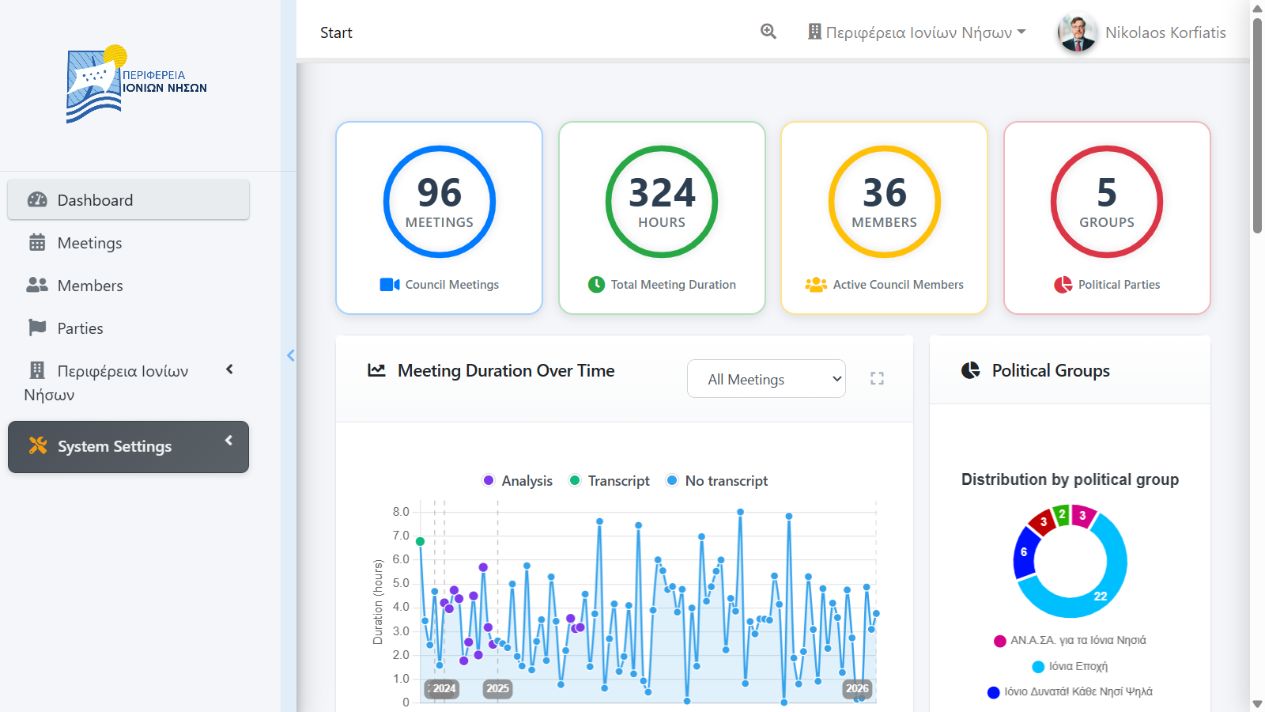
The persistent sidebar contains Dashboard, Meetings, Members, and Parties. Collapse it with the edge arrow when more workspace is needed. Administrative menus appear only for authorized users.
Top bar
- Quick Search: search without leaving the current page.
- Advanced Search: open the full search page for more precise transcript discovery.
- Switch Organization: change the active organization when your account has multiple assignments.
- User menu: open profile, preferences, activity-related tools available to your role, or sign out.
- Language: switch between the available interface languages.
Dashboard
The dashboard summarizes meeting count, total duration, active members, and political groups. It also shows meeting-duration trends, political-group information, and recent meetings. The meeting chart can be filtered by all meetings, council meetings, or committees and expanded to fullscreen.
Find meetings
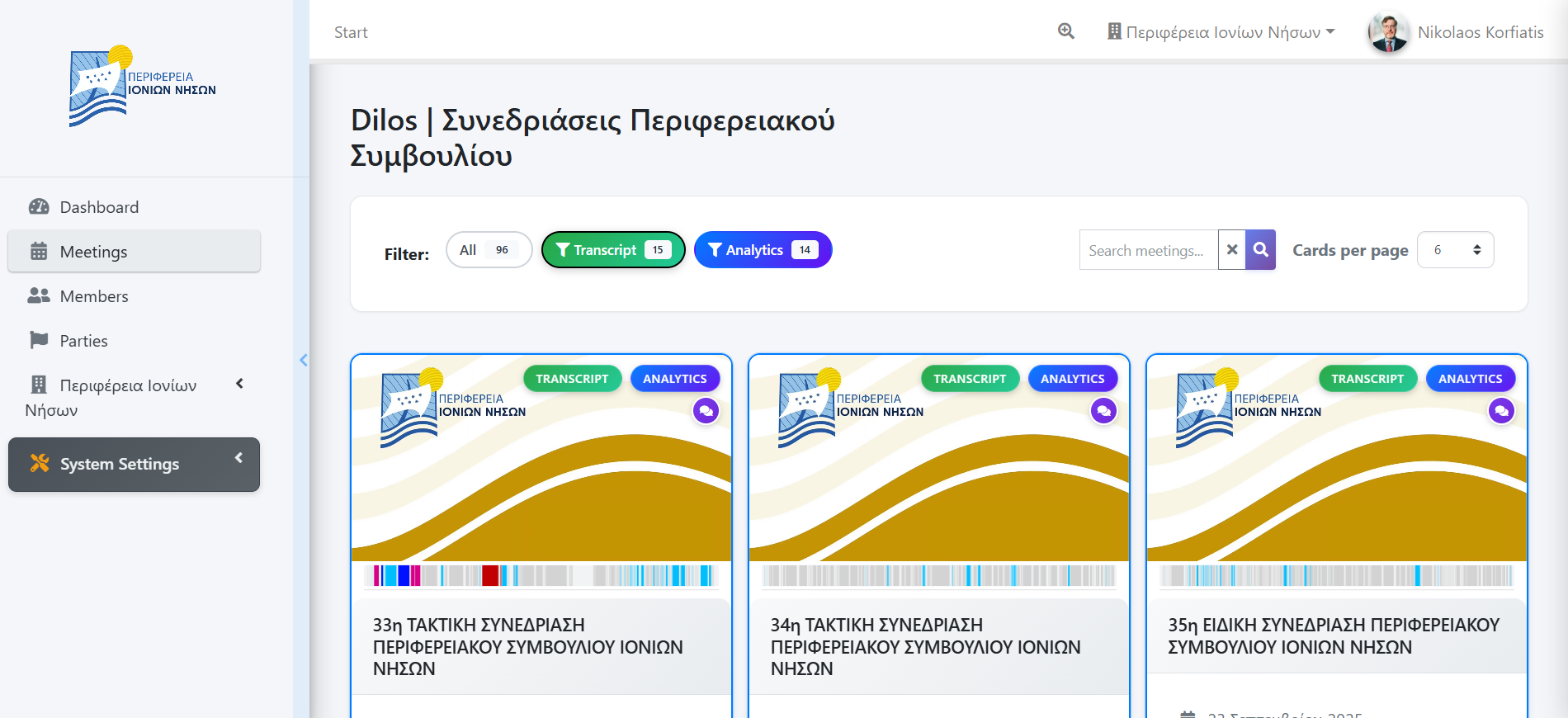
The Meetings page displays paginated meeting cards with title, date, thumbnail, and duration when known.
- Filter by availability of Transcript or Analytics.
- Filter by configured meeting type, such as regular council, special council, committee, or public hearing.
- Search meeting titles and change the number of cards shown per page.
- Select a card to open its meeting workspace.
A duration shown as N/A or a missing transcript/analytics count means that material has not yet been imported or processed; it is not a browser error.
Meeting workspace
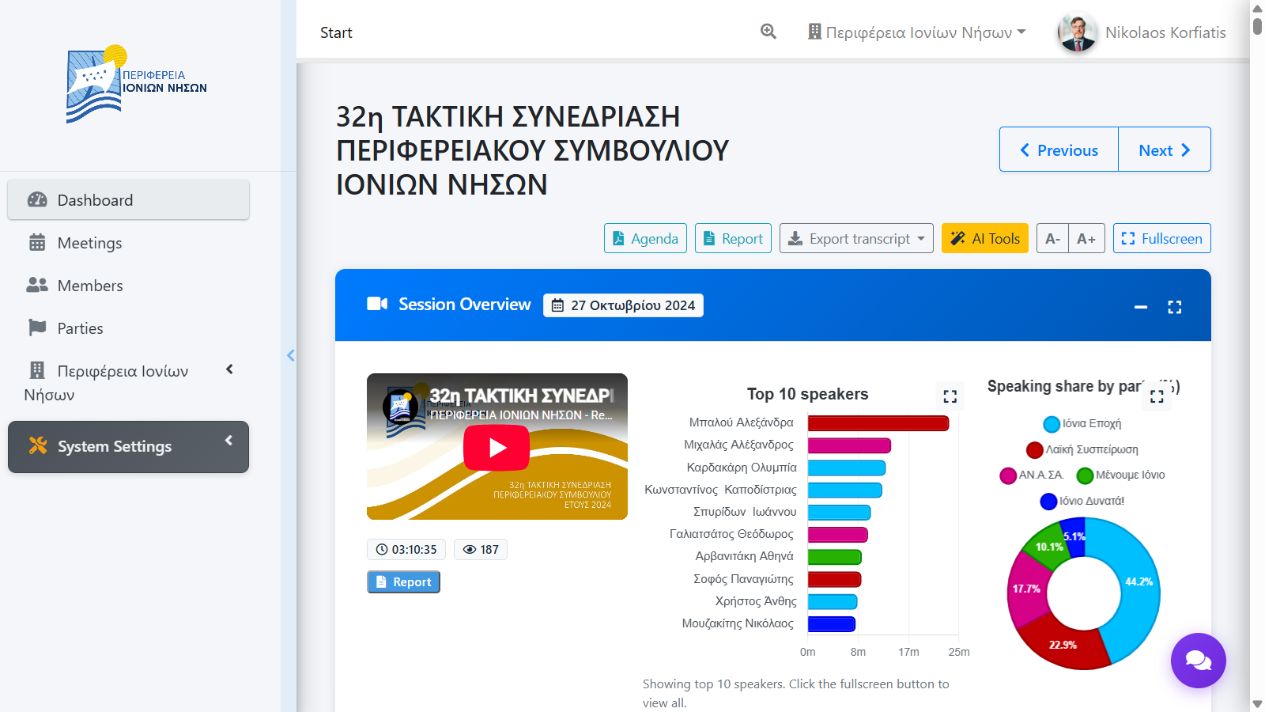
The meeting workspace combines the recording and the material currently available for that meeting.
Play the video, use fullscreen mode, and move to the older or newer meeting with the navigation controls.
Review the session overview, transcript by speaker, agenda preview, summaries, report, tags, and timeline when available.
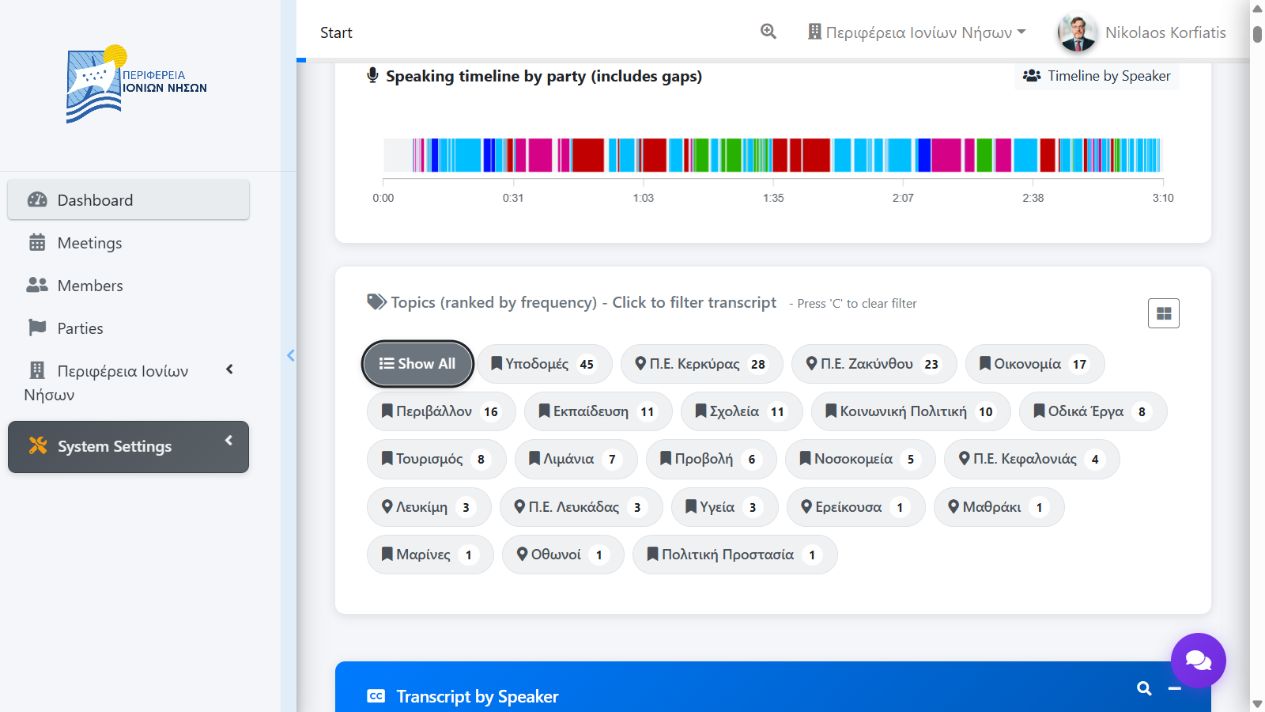
Selecting a transcript segment seeks the recording to that point. The speaker timeline provides another visual way to navigate the discussion. Authorized editors also see meeting-edit and transcript-management controls.
Transcripts and speakers
Transcripts are stored as timed fragments. Depending on permission, the fragment controls can:
- Edit transcript text and timing.
- Add a fragment at the current position or split an existing fragment.
- Assign a member or guest speaker to one fragment, or use the available scope options for related fragments.
- Assign regional and thematic tags manually or review AI suggestions.
- Open edit history to review recorded changes.
Manual speaker assignments are treated as confirmed editorial decisions and are preserved when AI speaker suggestions are generated. Review the speaker and timing after every edit, especially near fragment boundaries.
AI tools
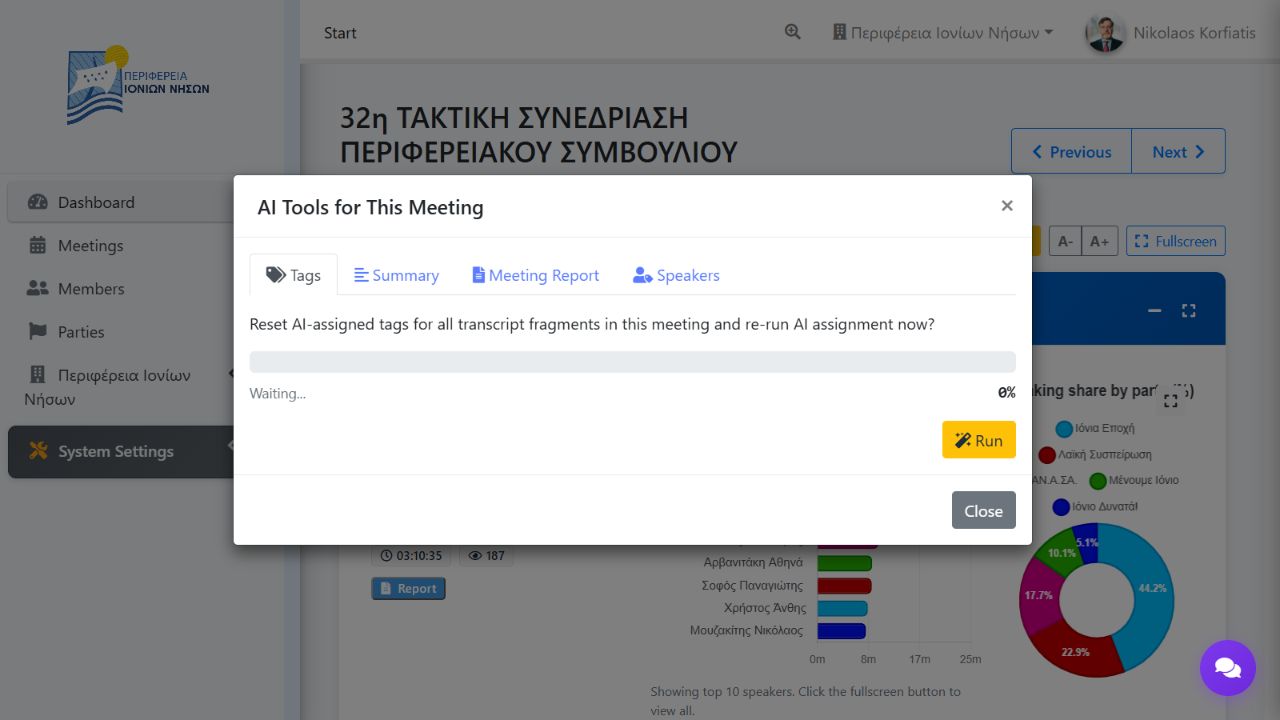
When AI is enabled for the active organization and your role permits it, AI Tools for This Meeting provides focused workflows:
- Tags: suggest regional and thematic tags, then apply selected suggestions.
- Summary: generate or regenerate a meeting summary and export an approved summary to Word.
- Meeting Report: generate a structured report from the available meeting material.
- Speakers: guess speakers for unconfirmed fragments, review suggestions, and accept selected results.
- Spelling correction: review proposed transcript corrections before accepting them.
- Ask about this meeting: ask questions grounded in the meeting content through the assistant panel.
Search and export
Search
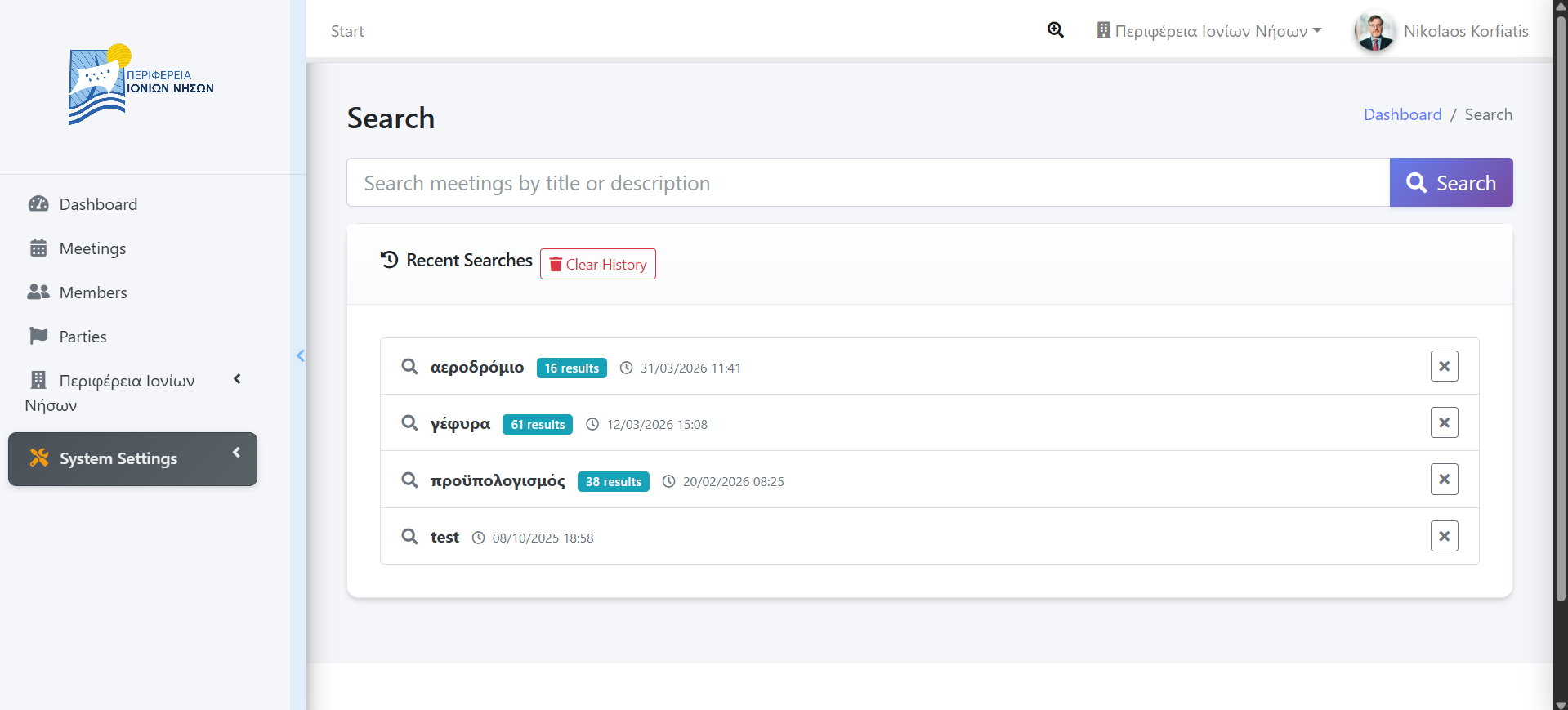
Use Quick Search for a fast lookup from the top bar. Use Advanced Search when you need the dedicated results page. Results remain limited to the active organization and to content your account may access. Open a matching meeting result to review it in context.
Export and download
Download and Word-export actions appear only when the relevant source exists and your role is allowed to export it. Available exports can include meeting or transcript material, summaries, and generated reports. Inspect generated documents before distributing them.
Members and parties
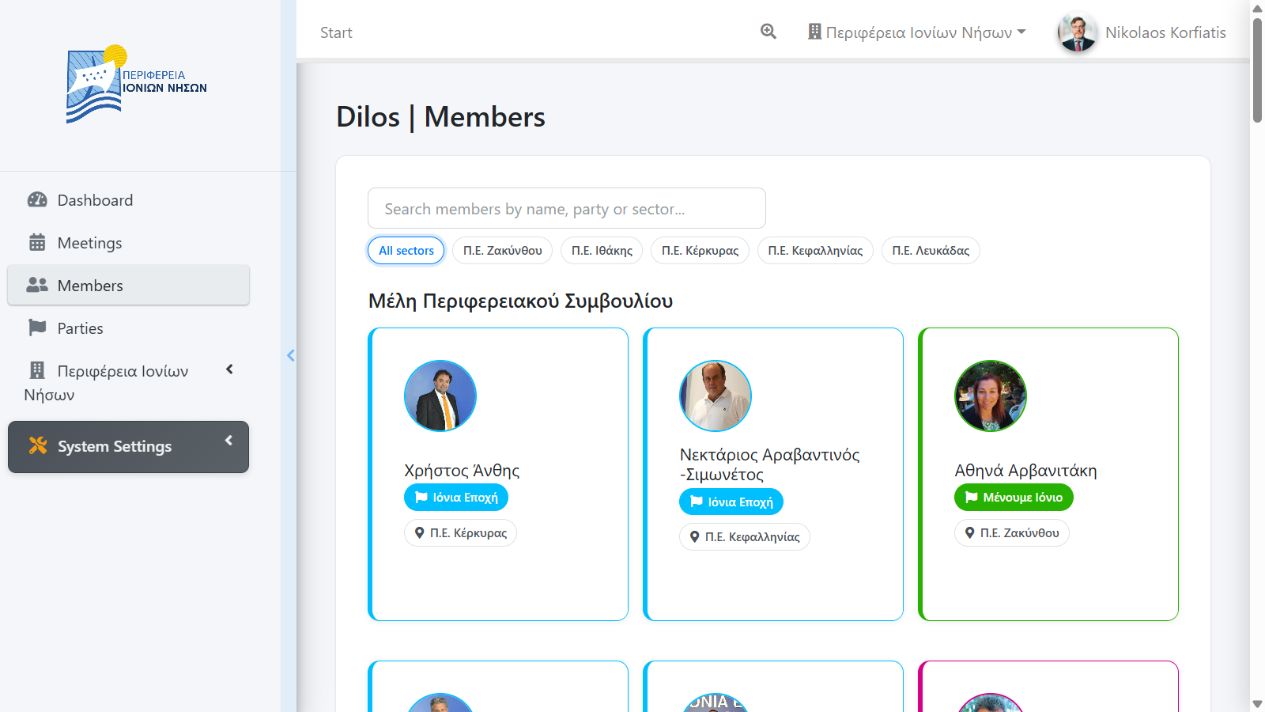
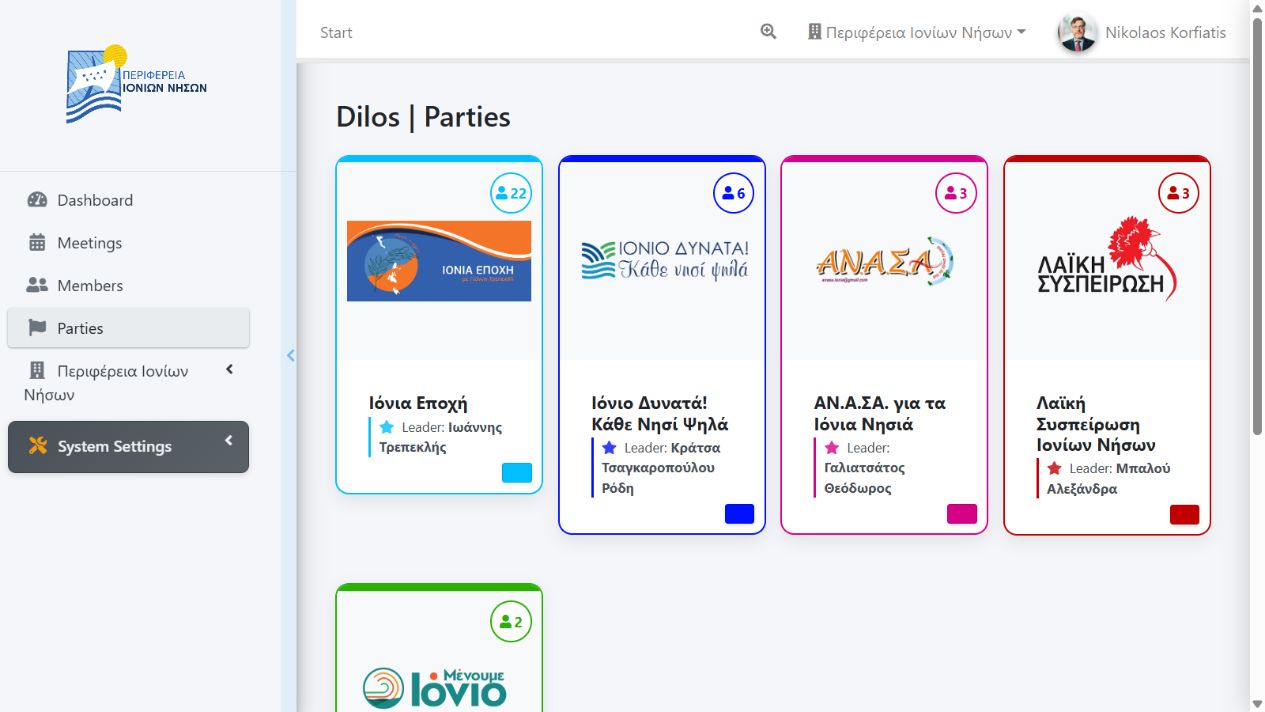
Members is the organization participant directory. Profiles can include identity, avatar, role or hierarchy information, affiliations, and participation data. Parties lists the active political groups and their organization-specific presentation.
Users with management permission can create or update records and organization relationships. Use guest speakers for people who participate in a meeting but are not regular members; do not create duplicate member records solely to label one transcript fragment.
Account and preferences
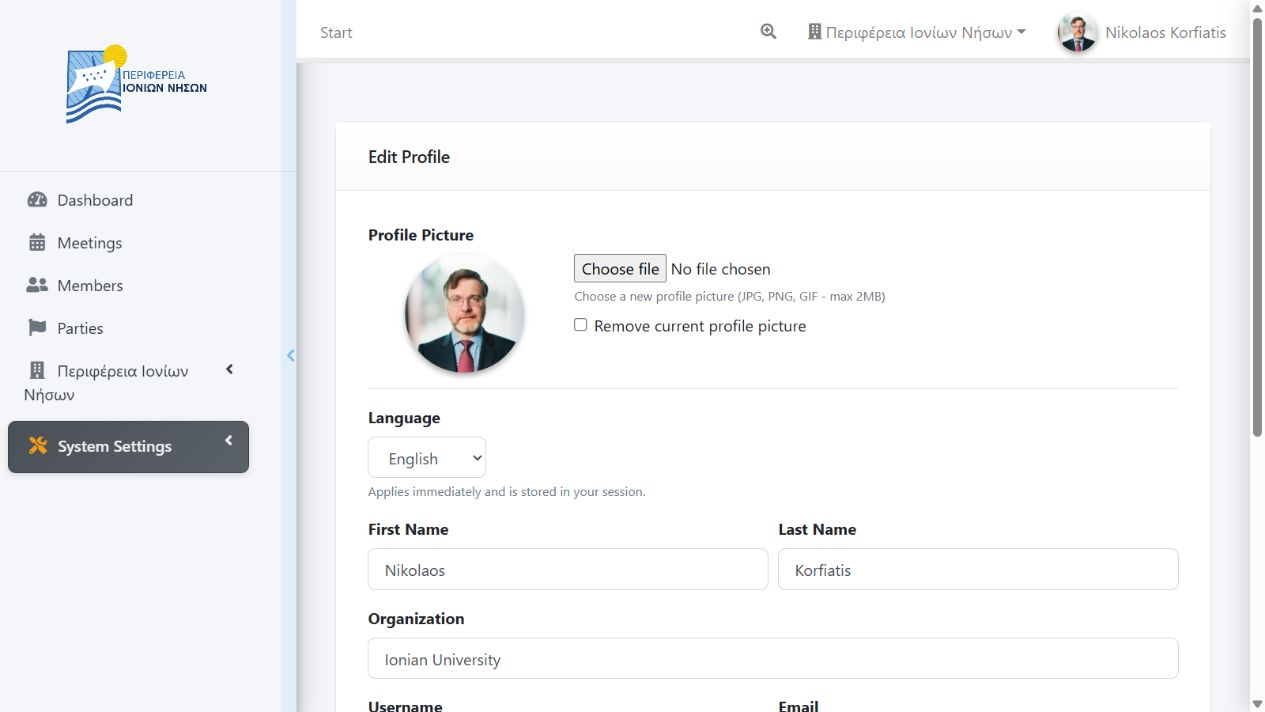
Open the user menu to manage the profile and preferences exposed to your account. Profile options can include personal information, avatar, password, language, and organization-related settings. Sign out when using a shared device.
- Your effective access is the combination of your account, active organization assignment, role, and explicit permissions.
- Super administrators may use impersonation for support. The interface clearly identifies an impersonated session; exit it as soon as the support task is complete.
- Never share passwords or reuse another person's account for editorial work, because edits and administrative activity are attributed to the signed-in user.
Administration
Organization administration
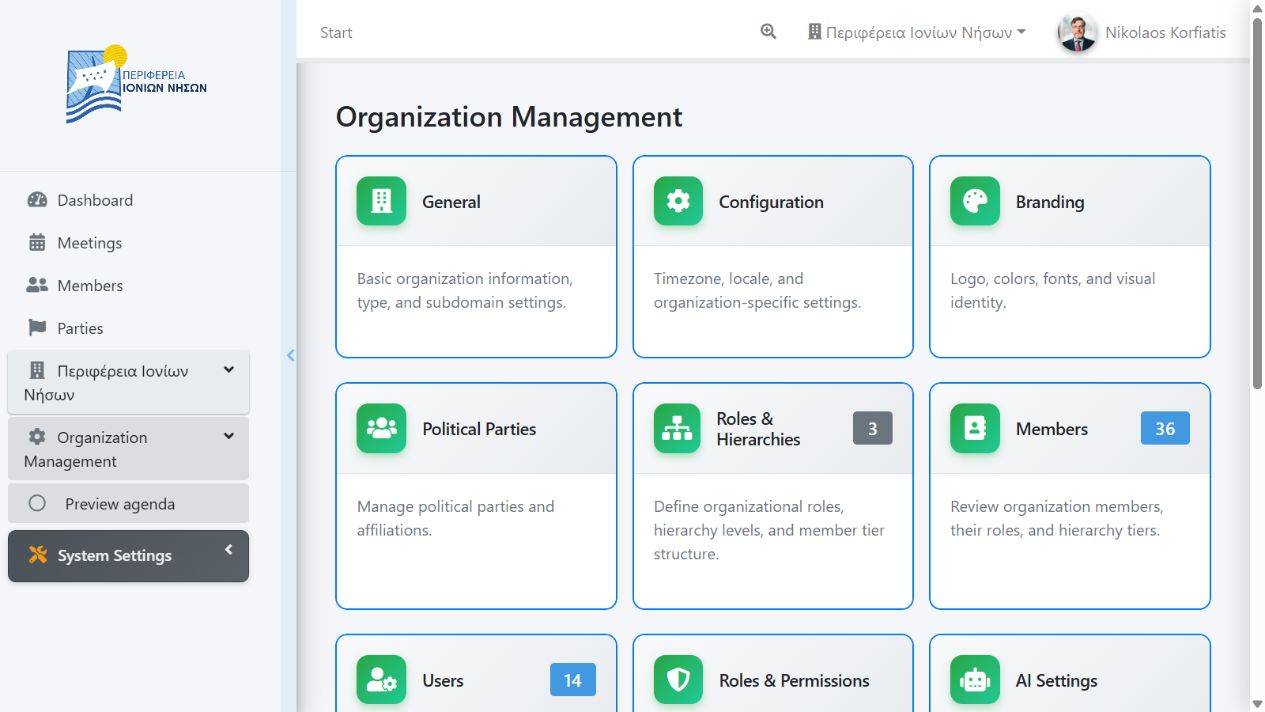
Authorized organization administrators can open Organization Management. Its current areas are Overview, General Settings, Configuration, Branding, Political Parties, Roles, AI Settings, Meetings, Hierarchy, and Advanced. Changes apply to the active organization.
System administration
Super administrators additionally see System Settings with Organization Management, User Management, Database, Logs, Parameters, Permissions, and Interest Form Submissions.
- Assign the least privilege required and review user-to-organization assignments when access changes.
- Configure branding, meeting types, hierarchy, AI providers, transcription, and integrations from the organization area instead of editing records directly.
- Use Logs and Database tools for diagnosis and maintenance only. Back up data before schema or bulk operations.
- Secrets such as provider keys and integration credentials belong in protected settings and must not be copied into meeting text, chat questions, or support screenshots.
Troubleshooting
- A menu or button is missing
- Confirm the active organization and your assigned role. The feature may be disabled, unavailable for that meeting, or restricted by permission.
- A meeting has no transcript, analytics, or duration
- The processing or import stage may not be complete. Check the meeting's administrative status or ask an organization administrator.
- Search does not find expected text
- Confirm the organization, spelling, and whether the meeting has a processed transcript. Search cannot return content outside your access scope.
- Video and transcript are out of sync
- Verify the fragment timing in the transcript editor. Report broad offsets to an administrator before making many individual timing edits.
- An AI action fails or gives weak results
- Ensure the meeting has usable transcript content and that AI is configured for the organization. Retry only after checking the input; preserve manual assignments and review all output.
- You cannot sign in
- Check the selected organization, username, and keyboard language. Use password recovery or contact an administrator for activation and organization assignment.
This guide describes the current DILOS interface. Organization branding, available meeting material, and permission-controlled controls may differ from the examples.